How to Clean Up Your Root Directory in Ubuntu and Free Up Space
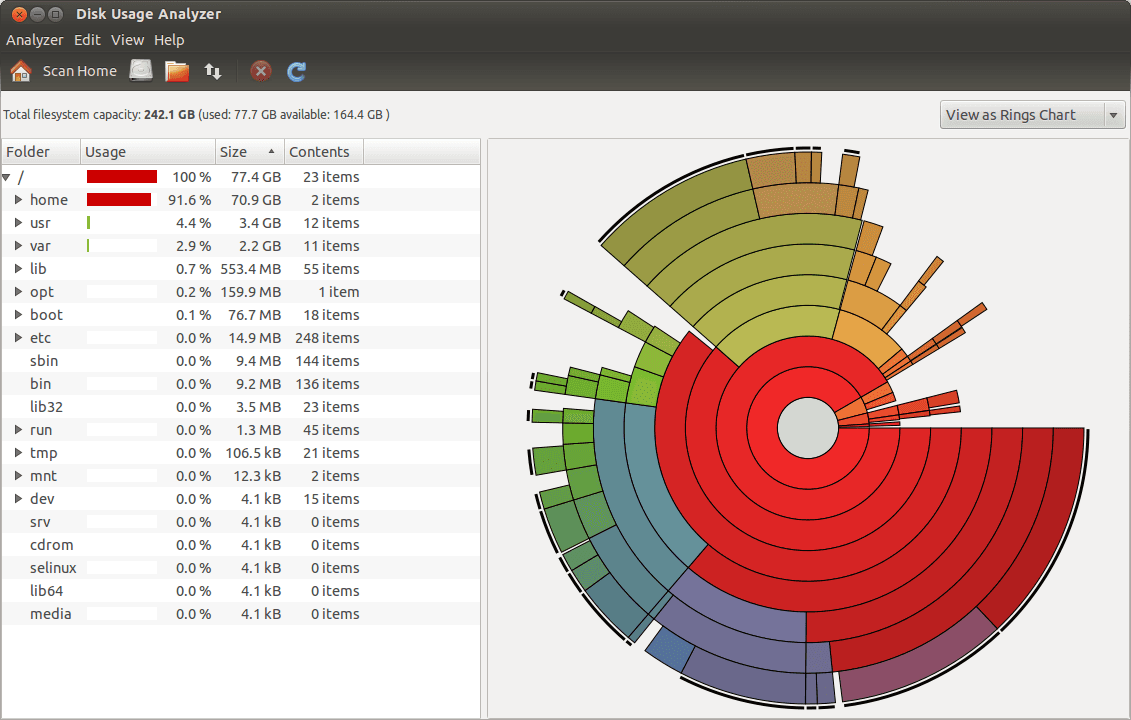
Running out of space on your Ubuntu root directory (/) can lead to system performance issues and even prevent updates or installations. If your / directory is nearing its capacity, it’s time for some cleanup. Follow these steps to efficiently free up space on your Ubuntu system.
1. Identify Large Files and Directories#
The first step is to find what’s taking up the most space.
sudo du -xh / | grep -P "^[0-9.]+G" | sort -hr | head -n 20
This command lists the top 20 largest files and directories. It gives you an idea of where to start.
2. Clear Package Cache#
Package managers often leave behind cached files. Clean them up with:
sudo apt-get clean
sudo apt-get autoremove
3. Remove Old Kernels#
Old kernels can occupy significant space. List installed kernels:
dpkg --list 'linux-image*'Remove the old ones, ensuring not to remove the current kernel:
sudo apt-get remove --purge linux-image-<old-kernel-version>4. Clear System Logs#
System logs can grow large over time. Limit them to the last few days:
sudo journalctl --vacuum-time=3d5. Remove Unused Packages#
Identify and remove orphaned packages using deborphan:
sudo apt-get install deborphan
sudo deborphan | xargs sudo apt-get -y remove --purge
6. Check for Large Files#
Search for large files manually:
sudo find / -type f -size +100M -exec ls -lh {} \\;Review and delete unnecessary files.
7. Clean Temporary Files#
Clear out temporary files:
sudo rm -rf /tmp/*
sudo rm -rf /var/tmp/*
8. Examine Disk Usage with ncdu#
Use ncdu to interactively check disk usage:
sudo apt-get install ncdu
sudo ncdu /
This tool helps you navigate and identify large directories.
9. Manual Inspection#
Check specific directories known for accumulating files:
sudo ls -lh /var/log
sudo ls -lh /var/cache
Manually remove unnecessary files.
10. Manage Snap Packages#
Snap packages can also take up space. List and clean up old revisions:
sudo snap list --all
sudo snap remove <old-snap-revision>